
Inspect live components
See every Lit element on the page, its reactive properties and its source file, and watch which ones re-render. Everything here works without recording.
Browse the tree
Section titled “Browse the tree”The Components tab shows a live, hierarchical tree of the Lit elements on the page, descending through shadow roots. Click a row to select it. Hover a row to outline that element in the page. Hold Shift while hovering to outline every element with the same tag at once, in dashed boxes, and to mark their rows in the tree. That shows how often a component is used and where.
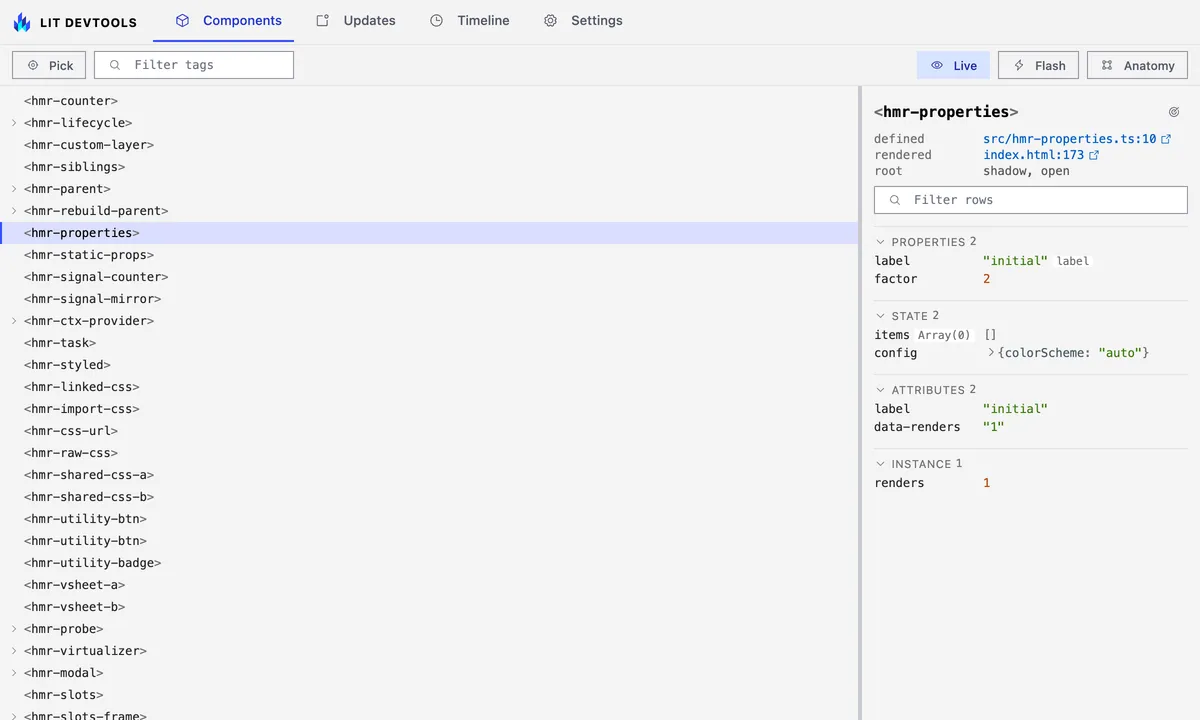
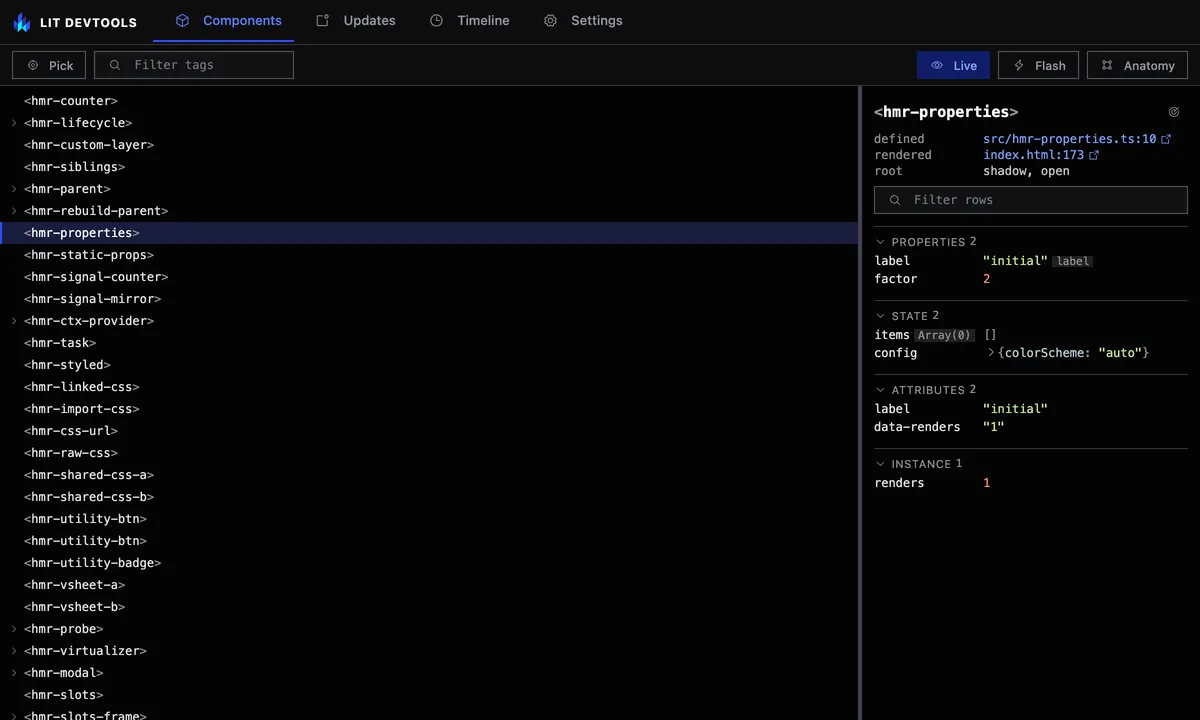
The tree follows the page as components appear and disappear; see Follow changes live to pause it.
To find an element on a busy page, type in the Filter tags box in the toolbar. The tree narrows to elements whose tag or class name contains the text, ignoring case, and the box shows how many match. Each match keeps its ancestors, dimmed, so you can see where it sits, and every kept branch shows open. Clearing the filter, with the clear button or Escape, brings back the branches you had expanded.
A tag that nothing has defined, because the import is missing, the tag is
misspelled or its chunk has not loaded, stays in the tree where the page uses
it, with a not defined chip. Selecting it shows the same chip, a note on the
usual causes, and the rendered line when the template position is known;
it has no properties because it has no class. Once the tag is defined the
chip goes away on its own, as long as the tree is live.
A custom element another library defined, a vanilla web component or one built with Stencil or FAST, also stays in place, unmarked, so the tree shows what really wraps your components. Selecting it shows its attributes and slots and a short note; it has no properties or updates because Lit doesn’t render it. Plain HTML elements are still left out.
A component Lit rendered on the server carries a pill that says where its
hydration stands: an amber deferred with a struck-through drop while
defer-hydration holds it back, an amber not hydrated with a half drop
until its first update hydrates it, and a blue hydrated with a full drop
once it has. Both the row and the details pane switch as soon as the element hydrates.
The same state is the ssr field
that lit_list-components and lit_component-details return to agents.
An element whose tag is defined but that never became an instance of its class
gets an amber not upgraded chip instead. That happens when the class’s
constructor threw while the browser upgraded the element, so check the console
for the error. Like a tag nothing defined, it has no properties to show. One
the server rendered keeps showing that HTML and will never hydrate, so it gets
this chip alone, without a hydration pill; its ssr field still says it came
from the server.
A component Lit’s development build has warned about carries an amber
n warnings chip on its row, and the Components tab shows an amber count
of the components Lit warned about, next to the red HMR issues count. Every
instance of a warned tag shows the chip, because Lit warns once per message.
Select the row to read the warnings in the
details pane.
When an edit is hot-patched in place, a line above the tree reads
Patched <tag> ×N in M ms (childState: …) for the most recent patch. It is not
an issue, so the tab badge does not count it. Components that could not be
patched appear in the HMR issues banner instead.
Read the details pane
Section titled “Read the details pane”Selecting an element fills the pane on the right. The tag name heads it, with
a status beside it only while one applies: pending while an update is queued,
not rendered before the first update has run, and n warnings when Lit’s
dev build has warned about the component. Under the tag, three short
lines say where the class is defined, where this instance is rendered,
and its root: shadow with its mode and delegatesFocus, or light DOM.
A location reads as short as it can and keeps the full path in its tooltip.
A file in your project reads relative to the project, such as
src/pages/basics.astro:26. A file in a dependency reads as the package, its
version when the path carries one, and the path inside the package:
@awesome.me/webawesome 3.14.0 › dist/chunks/chunk.7VGCIHDG.js:11. When that
package’s Custom Elements Manifest names the module declaring the class, the
defined row shows that module and the class instead of the bundler chunk:
@awesome.me/webawesome 3.14.0 › components/card/card.js (WaCard). A click
still opens the chunk at its line, because that is the code the page runs.
Below those come the sections, each shown only when it has rows. Properties lists the public reactive
properties, with a badge naming the attribute a property reflects to. A
property declared with options beyond Lit’s defaults gets one more badge per
option: hasChanged and converter for a custom function, noAccessor,
useDefault, and no attr for attribute: false. A plain @property() has
none. The badges only say an option is set; no custom function is called.
State lists internal @state. Attributes lists the attributes the
element currently carries, as quoted strings.
When the properties come from more than one class, Properties and State group
them under the name of the class that declared each one: the element’s own
class first, then each base class and mixin up the chain. A property a subclass
redeclares sits with the subclass. A mixin’s class is often anonymous and reads
(anonymous class).
Values are coloured like code: keys, strings, numbers, keywords and class
names each take their own colour. A value too long for its row moves to its
own line under the name, and an object or array too wide for that line opens
up one entry per line. Where the preview does not already say what a value
is, a muted tag after the name does, such as Array(3) or Date.
Previews go two levels deep and show the first eight items of an array,
object, Map or Set, with a count of the rest. A Map lists its entries
as key => value.
To see past those limits, click the caret before an object, array, Map or
Set. The row opens one level, listing each key, index or entry with its own
preview, and any child that holds more has a caret of its own. Each level
lists up to 100 children and counts the rest. Open levels follow the value as
it changes, and selecting another element closes them. A snapshot has no live
page to ask, so it shows no carets.
Hover a row, or tab to it, to show a copy button at its right edge. It copies the value as the pane shows it, which is the preview and not the live object, so a truncated value copies truncated. An attribute copies its text without the quotes.
To work with the live object instead, use the page’s console. $lit there is
the element selected in the Components tab, the way $0 is the Elements
panel’s selection, unless the page defines a $lit of its own. Property, State
and Instance rows also have a terminal button beside the copy button. It
stores the row’s value in the next free temp1, temp2… global and logs it
under that name, as the browser’s Store as global variable does. Neither
works in a snapshot, which has no page.
A property that holds a string, number or boolean also shows an edit button right after the value, and double-clicking the value does the same. A boolean flips on a click. A string or number turns into an input: Enter or leaving the field applies it, and Escape cancels. Objects, arrays and functions cannot be replaced, nor can a string cut short in the pane, and a snapshot has no page to write to.
The value you set is an override, kept on top of the element’s own value the way a declaration sits in the browser’s Styles pane. It holds when the app writes the property, a parent binding changes or the attribute does: those writes land in the element’s own value, underneath. An overridden row gets a checkbox in front of its name and shows the value it hides struck through: the element’s own value while the override is on, the override while it is off. Clear the checkbox to see the app’s latest value, check it to bring the override back, and click the cross to remove it.
An override lasts until the page reloads, unless you pin it. A pinned override is saved in the tab’s session storage under the page’s path, and comes back on the next load from the component’s first render, so the page never shows the old value. The element is found again by where it was written in a template and how many elements from that spot come before it, or, for an element no template stamped, by its place in the page. A list that reorders or a condition that renders differently can move it. A pinned override that no longer fits its element, because the property was renamed or holds another type now, is dropped and the bar says so.
In the browser extension, pinned overrides are kept in the extension’s own session storage, per site, and never in the site’s storage; they are cleared when the browser closes. Pages there carry no template stamps, so elements are found by their place in the page. The extension reads its storage asynchronously, so a component that renders before the overrides arrive renders once more with them.
While the page has overrides, a bar under the toolbar lists them. Its Apply overrides switch turns them all off and back on at once, each keeping its own checkbox. Open the list to see each element and property, pin or remove one, or click it to select the element. The summary also counts pinned overrides whose element is not on this page yet; they apply when it appears. Clear all removes every override, pinned ones included.
A string, number or boolean inside an expanded object, array or Map gets the same edit button, and the value you set there is an override too, with the same checkbox and cross. The write lands in the live object, not in a copy, so anything else that holds that object sees the new value too. Clearing the checkbox writes the old value back, unless the app has written that slot since, in which case the app’s value stays. If the app replaces the object itself, the override has nowhere left to apply: it is dropped, and the bar under the toolbar names it until you dismiss the notice. Members of a Set cannot be edited, and neither can the shape of a value, which means adding or removing items.
Each section heading shows how many rows it holds. Click a heading to fold the section. It stays folded as you select other elements and after a reload.
To find one row in a large component, type in the Filter rows box under the tag name. Every section, slots and parts included, narrows to rows whose name or value contains the text, ignoring case. Headings then count matches out of the total, sections with no match drop out, and folded sections open until the filter is cleared. The filter stays set as you select other elements, so you can compare one property across several. Press Escape to clear it.
Instance lists what the reactive properties do not cover: @lit/task
status with its value or error, @lit-labs/signals signals, other reactive
controllers (named by the field that holds them, else by class) and plain class
fields, at most 24 in all. A muted tag after each name gives its kind, and
hovering it shows the type. A plain field shows its type tag instead, and a
task adds its status as a dot: amber while pending, green when complete, red
on error. The section has limits. A computed signal shows as
(computed) and is never evaluated, since that would run your code.
Controllers are found through a private Lit field, so a Lit build that renames
it lists none. Values use the same previews as properties.
@lit/context providers and consumers, including ones made with @provide
and @consume, are tagged context and show the context key (a Symbol’s
description, or the string) next to the name. The value expands like a
property. A consumer row links to the provider element it reads from, and a
provider row links to its consumers; clicking a link selects that element.
The provider is found by walking up from the consumer the way its request
travels, into the slot it is assigned to before its parent, and, for a
subscribing consumer, confirmed against the provider’s subscriptions. A consumer that
did not set subscribe leaves no trace, so a provider cannot list it. A
subscribing consumer that no provider has answered yet reads “waiting for a
provider”: a provider that connected after the request doesn’t answer it
unless a ContextRoot keeps the request and replays it, and once one does the
row links to it. A subscribed consumer’s row follows the provider’s value
live, and so does a provider’s own row when its value is set directly, without
its host updating.
Warnings appears above the tables when Lit’s development build has warned
about the component, for example change-in-update for an update scheduled
from inside updated(). Each row has Lit’s message and its code, which links
to the explanation on lit.dev. Lit warns once per message, so the list
describes the component and every instance of that tag shows it. A production
build of Lit issues no warnings. The same list is in the warnings field that
lit_component-details returns to agents.
While a recording holds updates that the element scheduled for itself, the
section also counts them for this instance: “Re-rendered itself 3 times in the
recording”. The count joins Lit’s change-in-update warning, or stands as a
row of its own when Lit said nothing, as under a production build. The
Updates tab
lists those updates.
Dispatched counts the events the element dispatched on itself in the recording, per type, most frequent first. It needs the Custom events layer, which is off by default, and stays hidden until the element dispatched something. It counts dispatches only; which listeners ran is not recorded.
Slots and Parts show how the element composes its content; see See an element’s slots and parts.
The playground fixture below fills Properties, State and Attributes. The two marked @property
declarations land under Properties, label with an attribute badge; the two
marked @state declarations land under State.
import {LitElement, css, html} from 'lit';import {customElement, property, state} from 'lit/decorators.js';
/** * Wider reactive-property surface: a reflected `@property`, a numeric * `@property`, and array/object `@state` values — all must survive a hot * patch, and the accessors must stay functional afterwards (assignments * still reflect and re-render). */@customElement('hmr-properties')export class HmrProperties extends LitElement {  static override styles = css`    .badge {      font-size: 0.8em;      color: var(--muted, #666);    }  `;
  @property({type: String, reflect: true})  label = 'initial';
  @property({type: Number})  factor = 2;
  @state()  private items: string[] = [];
  @state()  private config = {colorScheme: 'auto'};
  private renders = 0;
  override render() {    return html`      <h2>Properties: HELLO</h2>      <p id="label">label: ${this.label}</p>      <p id="factor">factor: ${this.factor}</p>      <p id="items">items: ${this.items.join(',') || '(none)'}</p>      <p id="color-scheme">color-scheme: ${this.config.colorScheme}</p>      <button id="add-item" @click=${this.addItem}>add item</button>      <button id="toggle-color-scheme" @click=${this.toggleColorScheme}>        toggle color scheme      </button>      <span class="badge" id="badge">renders: 0</span>    `;  }
  override updated() {    this.renders++;    this.setAttribute('data-renders', String(this.renders));    const badge = this.renderRoot.querySelector('#badge');    if (badge !== null) {      badge.textContent = `renders: ${this.renders}`;    }    // Apply the color-scheme state to the page. `auto` removes the attribute    // so the OS preference drives via the document `color-scheme` (declared by    // the <meta> in index.html) + `light-dark()`; `light`/`dark` pin    // [data-color-scheme] as a manual override. Because the @state survives a    // hot patch and this runs after the patch's re-render, the choice survives    // too.    if (this.config.colorScheme === 'auto') {      delete document.documentElement.dataset['colorScheme'];    } else {      document.documentElement.dataset['colorScheme'] = this.config.colorScheme;    }  }
  private addItem() {    this.items = [...this.items, `item${this.items.length + 1}`];  }
  private toggleColorScheme() {    // Flip the *resolved* scheme: from `auto` that's the current OS preference,    // so a dark system toggles to light (and vice versa). An explicit    // light/dark just inverts.    const resolved =      this.config.colorScheme === 'auto'        ? window.matchMedia('(prefers-color-scheme: dark)').matches          ? 'dark'          : 'light'        : this.config.colorScheme;    this.config = {colorScheme: resolved === 'dark' ? 'light' : 'dark'};  }}
/** * The non-decorator path: `static properties` plus a plain * `customElements.define()` call. */export class HmrStaticProps extends LitElement {  static properties = {    value: {state: true},  };
  declare value: number;
  private renders = 0;
  constructor() {    super();    this.value = 0;  }
  override render() {    return html`      <button id="static-increment" @click=${() => this.value++}>        Static count: ${this.value}      </button>      <span id="badge">renders: 0</span>    `;  }
  override updated() {    this.renders++;    this.setAttribute('data-renders', String(this.renders));    const badge = this.renderRoot.querySelector('#badge');    if (badge !== null) {      badge.textContent = `renders: ${this.renders}`;    }  }}customElements.define('hmr-static-props', HmrStaticProps);
The pane refreshes in place as the selected element updates, and each row
whose value just changed lights up briefly. Click the
defined link to open the class in your editor. When the element was written
in an html template, the rendered link opens that template at the line
and column of the tag, so you can tell which usage produced this instance.
Elements created any other way have no such line. Click the target
button beside the tag name to scroll the element into the middle of the page and outline it for a
moment, which helps when it sits below the fold. The arrows button next to it
calls requestUpdate() on the element. If the render then shows something
different, it depends on state outside its reactive properties. The update is
recorded with Request update in DevTools as its cause. If the element leaves the
page, the pane says so instead of showing stale values.
Read a component’s documentation
Section titled “Read a component’s documentation”The pane adds what the component’s documentation says about it, read from its JSDoc for your own components or from a Custom Elements Manifest for a library’s:
- About holds the component’s summary and description, with long text folded to a few lines behind more. Hover the icon at the end of its heading to see where they came from: the source file, or the package and manifest file.
- A documented property, attribute, slot or part has a dotted underline; hover it to read the description. Turn on inline descriptions under Components in the Settings tab to show each one under its row instead.
- Events lists the events the class says it fires, with their type.
- CSS properties lists the custom properties it reads, with any default.
- A
deprecatedchip beside the tag name repeats the reason given.
Your own components
Section titled “Your own components”Your project’s components need no manifest. While the dev server transforms a module it reads the classes in it, and a component’s docs come from its class and its public fields:
/** * A button that submits the form it sits in. * * @summary The form's submit button. * @fires submit-start - Before the form is sent. * @slot - The label. * @slot icon - An icon before the label. * @csspart base - The native button. * @cssprop [--x-button-gap=4px] - Space between icon and label. */@customElement('x-button')export class XButton extends LitElement { /** How much room the button takes. */ @property({reflect: true}) size: 'small' | 'large' = 'small';}The class comment may use @summary, @deprecated, @fires (or @event),
@slot, @csspart, @cssprop (or @cssproperty) and @cssstate, each as
name - description with an optional {Type} first. A property’s comment
gives its description and @deprecated, its type annotation the type, its
initializer the default, and @property() the attribute it maps to.
@state() fields and private, protected, #private and static members are
left out. The tag comes from @customElement() or a customElements.define()
call in the same module, and plain JavaScript with static properties and
@type works too.
A component inherits the members of the classes it extends when those live in
your project, even in another module. Mixins are followed too: in
extends Sized(Base), the members of your project’s Sized mixin are listed
as inherited from Sized, ahead of Base’s. A mixin counts when it is a
top-level function that returns a class, either directly or as a class it
declares and returns. A mixin from a package, such as SignalWatcher, is
skipped and the walk carries on to the base class. Docs read from source win over a manifest for the same tag, and an edit
shows as soon as its hot patch lands.
Libraries and manifests
Section titled “Libraries and manifests”The dev server looks for manifests in two places: your project’s own package,
and every package it lists as a dependency. A package points at its manifest
with the customElements field in its package.json, or keeps a
custom-elements.json next to it. So components from a library such as Web
Awesome come documented with nothing to set up. You can still have a tool such
as the
Custom Elements Manifest analyzer
or cem write one for your own package, for
the components the dev server hasn’t transformed. When a manifest is
regenerated while the server runs, the pane updates within a second or so.
The browser extension has no disk to read and doesn’t see the dev server’s
transforms, so it reads manifests from the site instead: the ones the page
links to with <link rel="custom-elements-manifest" href="…">, ones it finds
beside the page’s scripts, and ones you add in its Settings, from the same
site only; see
the extension guide.
On pages it serves, the Vite plugin adds those links for every manifest it
found, so the extension shows the same library docs there, but not docs read
from your source. A snapshot carries neither, so it shows none.
Pick an element on the page
Section titled “Pick an element on the page”Press ⌖ Pick in the toolbar, or Meta+Shift+E (⌘⇧E on a Mac), which is also in the DevTools command palette as Pick Lit Element. Move the pointer over the page and click the element you want. ↑ and ↓ step out to the element around the outlined one and back.
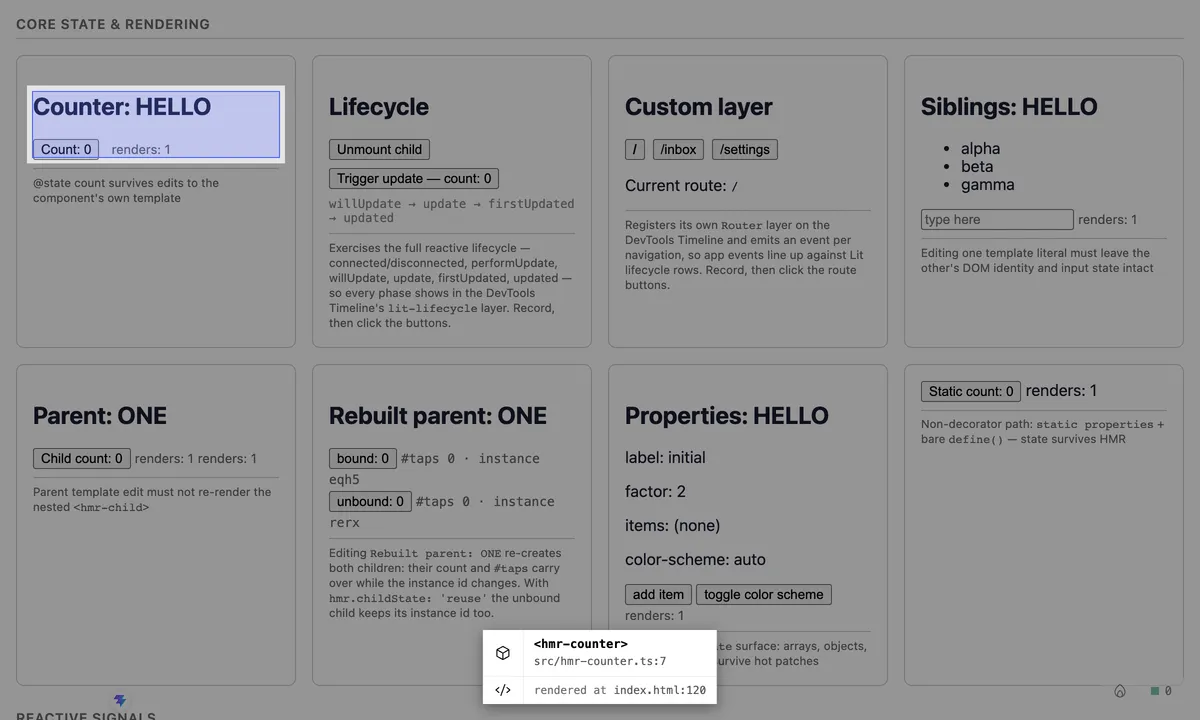
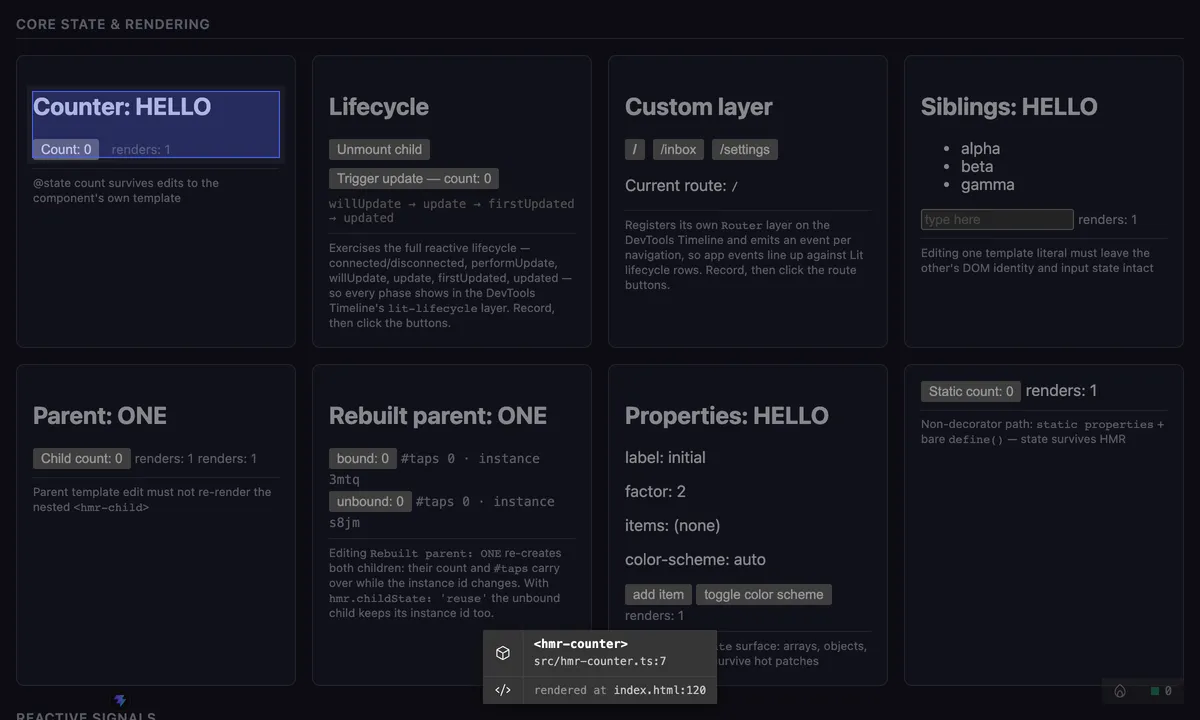
This is the same picker the source
overlay uses, so it needs
sourceOverlay switched on; without it the button is not shown. A page
connected to lit-devtools dev gets a
picker of its own that targets any Lit element, without source locations.
Set sourceOverlay.hosts
to 'lit' to pick a component library’s elements under Vite too. A plain click selects the element here in the
tree; hold Ctrl or ⌘ while clicking to open it in your editor instead.
Follow changes live
Section titled “Follow changes live”Live is on by default: a MutationObserver in the page re-pushes the tree
as the component hierarchy changes, including inside shadow roots. Changes to
text and plain markup are ignored, so they cost no tree rebuild.
Toggle Live off to pause the tree, for example to click through a list that keeps re-rendering, or to keep the observer’s work out of a timeline recording on a heavy page. Pausing takes one last snapshot of the tree; turning Live back on brings it up to date. The choice is remembered per browser.
Live follows any change to the page, whatever makes it. A client-side router,
htmx, or Turbo Drive swapping in a whole new <body>, as webawesome.com does,
all update the tree a moment after the page changes. With Live off, the tree
refreshes itself twice after a client-side navigation, at 150 ms and 1 s. A
route that renders later than that stays out until you refresh or turn Live on.
The observer itself is cheap: it reports added and removed elements, never text or attribute changes. The cost is the tree rebuild after a change. The runtime waits 100 ms after the last change, rebuilds once, and sends the tree only when it differs. A page that keeps inserting components, such as a large virtualised list, rebuilds about every 100 ms while it does.
A Lit component with a closed shadow root, set with
shadowRootOptions = {mode: 'closed'}, is listed and watched like any other:
Lit keeps the root on the element as renderRoot, and the tree reads it
there. A closed root attached by anything other than Lit stays hidden, and
elements rendered inside it are missing from the tree.
Closing the panel stops the page observer, and reopening it with Live on starts it again. That holds for a panel opened as its own tab too: closing the tab, or leaving it for another page, stops Live and clears the anatomy overlay and any outline the panel drew.
Flash elements that update
Section titled “Flash elements that update”⚡ Flash draws a short fading outline over every Lit element that finishes an update, so re-render churn shows up on the page itself rather than only in the Updates tab. It is off by default and does not depend on recording. Leave it on while you click around and the components doing more work than you expected announce themselves.
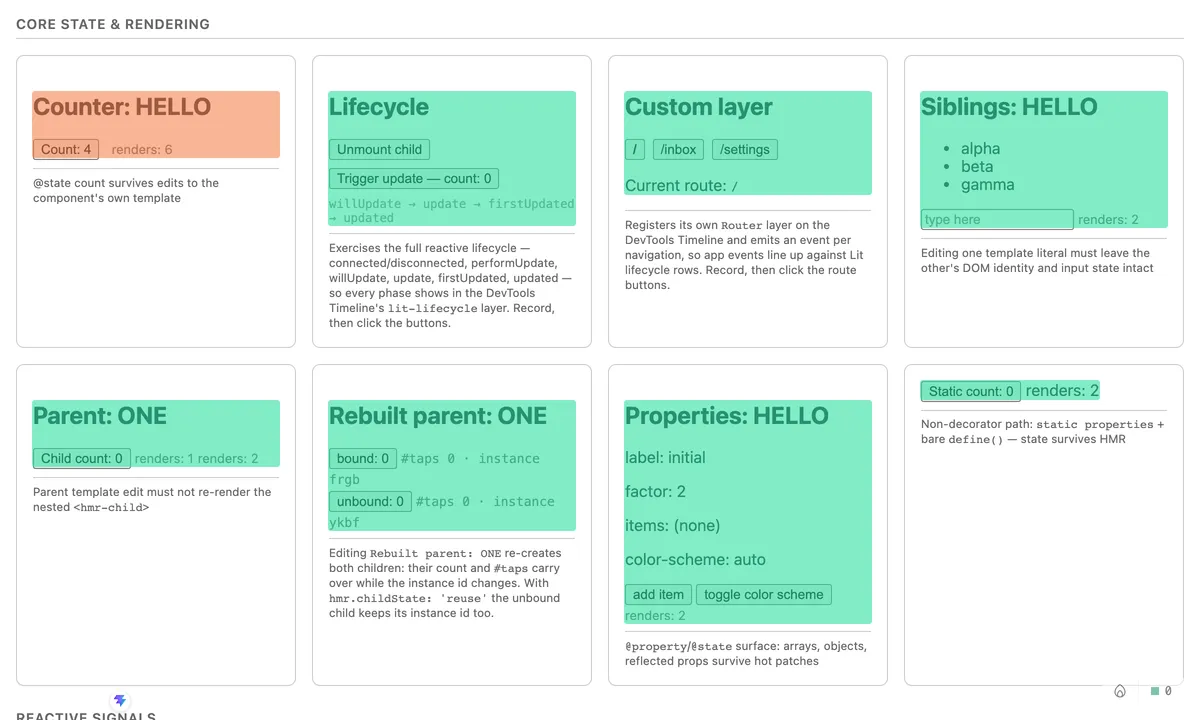
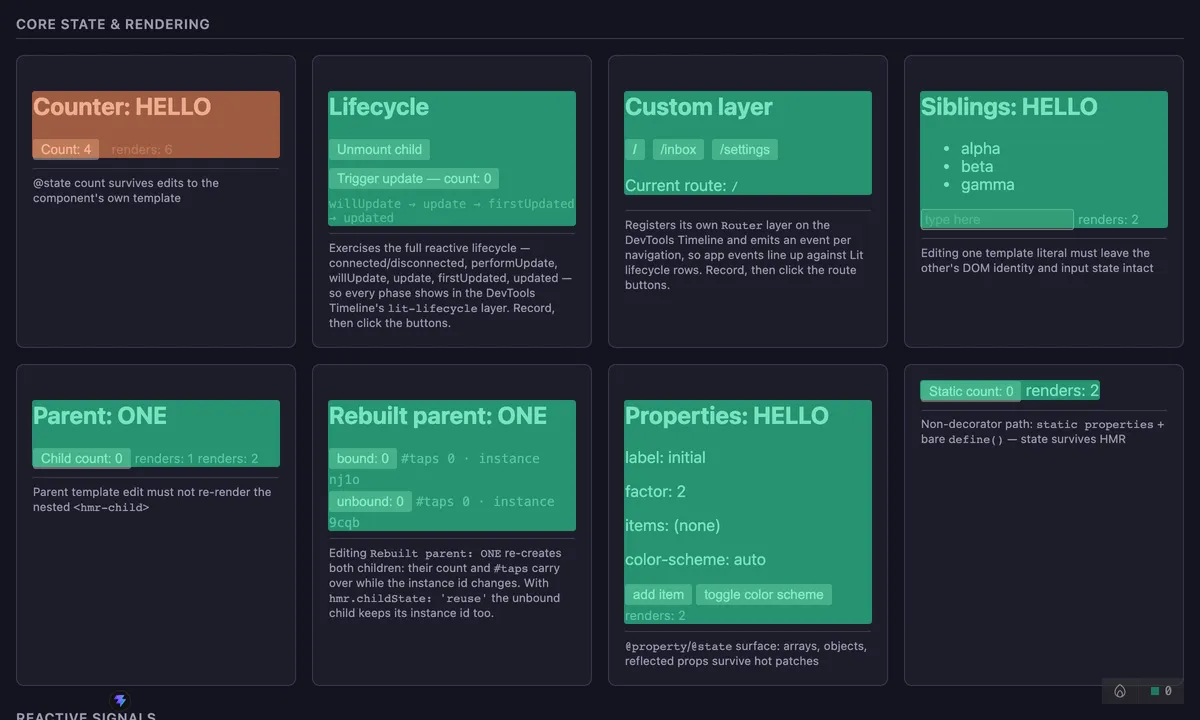
The outlines are drawn into one pointer-events: none layer, so the page stays
fully interactive underneath. Every element that updated in a frame is measured
together: a tick that updates a hundred components costs one layout, not a
hundred.
The optional flash updates ramp, in the Settings tab and available only while Flash is on, colours each outline by how often that element updated in the last second. Green for one, yellow at two, orange at four, red at eight.
Both preferences live in the settings override, so the page picks them up at boot and they survive a reload.
See an element’s slots and parts
Section titled “See an element’s slots and parts”Anatomy draws the selected element’s composition on the page: a grey
outline round the element, one coloured region per slot, and a dashed box per
::part export. Each region carries a label such as slot "title",
default slot or ::part(body). The toggle follows the selection, so picking
another element moves the drawing with it. The panel remembers the toggle, so
Anatomy left on is still on after a reload.
A <slot> has no box of its own, so each region is the bounding box of what
the slot renders: the light children assigned to it, or its fallback content.
A slot that renders nothing gets no region. The boxes are redrawn every frame
while Anatomy is on, so they follow scrolling and content changes.
The details pane lists the same slots and parts with matching colour swatches.
Each slot row names the elements assigned to it; click an element to select
it. Badges mark a slot that is empty, one that shows its own fallback
content, one whose content is forwarded from an enclosing component’s slot,
and a duplicate name that never receives content. Light children that no
slot takes are listed in red as not rendered, which catches a misspelled
slot attribute or a missing default slot. The root line under the tag
says when an element renders into light DOM, has a closed shadow root, or
sets delegatesFocus.
The Parts list also includes parts a nested component forwards with
exportparts, marked forwarded. A renamed one (exportparts="body: card-body")
is listed under its outer name, and the tooltip on the badge gives the inner one.
Forwarding is followed up to four components deep. A part on a slotted child,
or forwarded by one, belongs to the component whose shadow tree the child sits
in, as ::part() sees it, so it is listed there and not on the component that
slots it.
Hover a slot or part row to find its region on the page, even with Anatomy off. With Anatomy on, the region gains a ring and the others fade until the pointer leaves the row.
The tables refresh when the element updates, and whenever a slot’s assignment changes, so moving a light child into another slot or adding and removing children updates the Slots table without a re-render. A child that asks for a slot the element does not have changes no assignment, so the pane also watches the element’s children: adding, removing or renaming one updates the not rendered list too.
When the tree is empty
Section titled “When the tree is empty”An empty tree names its cause instead of one generic line. The tab says when the page runtime has not connected to the dev server, when more than one copy of lit is loaded, and when the runtime is inside an iframe; otherwise it reports that no Lit components were found. Each case has a fix in Troubleshooting.
The Settings tab ends with an About section: the plugin version, the lit
version or versions the page loaded, the timeline layers, whether the element
picker is available, and the order settings resolve in (panel override, plugin
option, LIT_PLUGIN_* env, default). Check it first when something looks off.